¶ ProxLogs User Manual - Gateway
¶ Introduction
The Gateway is a crucial component of the ProxLogs system, designed to facilitate remote data downloading and clock synchronization. It serves as a bridge between the loggers and the cloud-based storage, ensuring that your data is securely and efficiently transferred.
¶ Key Features
¶ Remote Data Downloading
The Gateway allows for the remote downloading of data from both mobile and stationary loggers. Whenever the gateway notices any logger over it's configured data-threshold, it will attempt to connect to it, download the proximity logs, clear the existing data off the logger and synchronize it's clock.
¶ Clock Synchronization
Whenever the gateway has received a timestamp in the past few hours (either through GPS, or through the mobile app) it will ensure that the internal clock on the loggers is in sync with the global time. Whenever a logger does not connect to a gateway for a prolonged period of time the clock will start to drift away from the real time by a couple of seconds each day. If the gateway is not used in an outdoor setting, make sure you set it's clock upon starting using the app. If accurate time-keeping is important, update the clock at least daily.
¶ GPS Module
The gateway is outfitted with a GPS-module. Using this module, it tries to stay in sync with official time-keeping by reading out the time-signal from GPS-sattelites. When placing the gateway outdoors for the first time, stay with the gateway for a couple of minutes to ensure that there is GPS-coverage. The app will indicate if the gateway is searching for sattelites or if it has made an active connection.
¶ Antenna
The gateway is equipped with a large antenna to receive the data from the loggers as accurately as possible. Try to ensure that the antenna is not near any metal surfaces or metal objects which could interfere with the antenna.
¶ Environmental Data (Optional)
Some Gateway models come with environmental sensors to capture additional data such as temperature, humidity and air pressure. Ensure that there is a vent present in the casing to ensure that these values are read out correctly. This data is stored as a file on the SD-card named "env.csv". If there is no valid time present on the gateway, the timestamp for those samples will be shown as in the year 2000.
¶ LED Meaning
The gateway has an LED which can be enabled/disabled using our app. These are currently the following possible colours:
- Teal/White: The gateway is still booting up.
- Green: Everything is working as it should
- Blue: The gateway is in a connection with a logger.
- Orange: The gateway is looking for a GPS-signal to sync the clock. If no GPS is available, it is recommended to use your phone to sync the clock.
- Red: The gateway can't communicate with the SD-card. No data is being downloaded.
- Purple: The gateway is preparing for a firmware update.
¶ Configuration
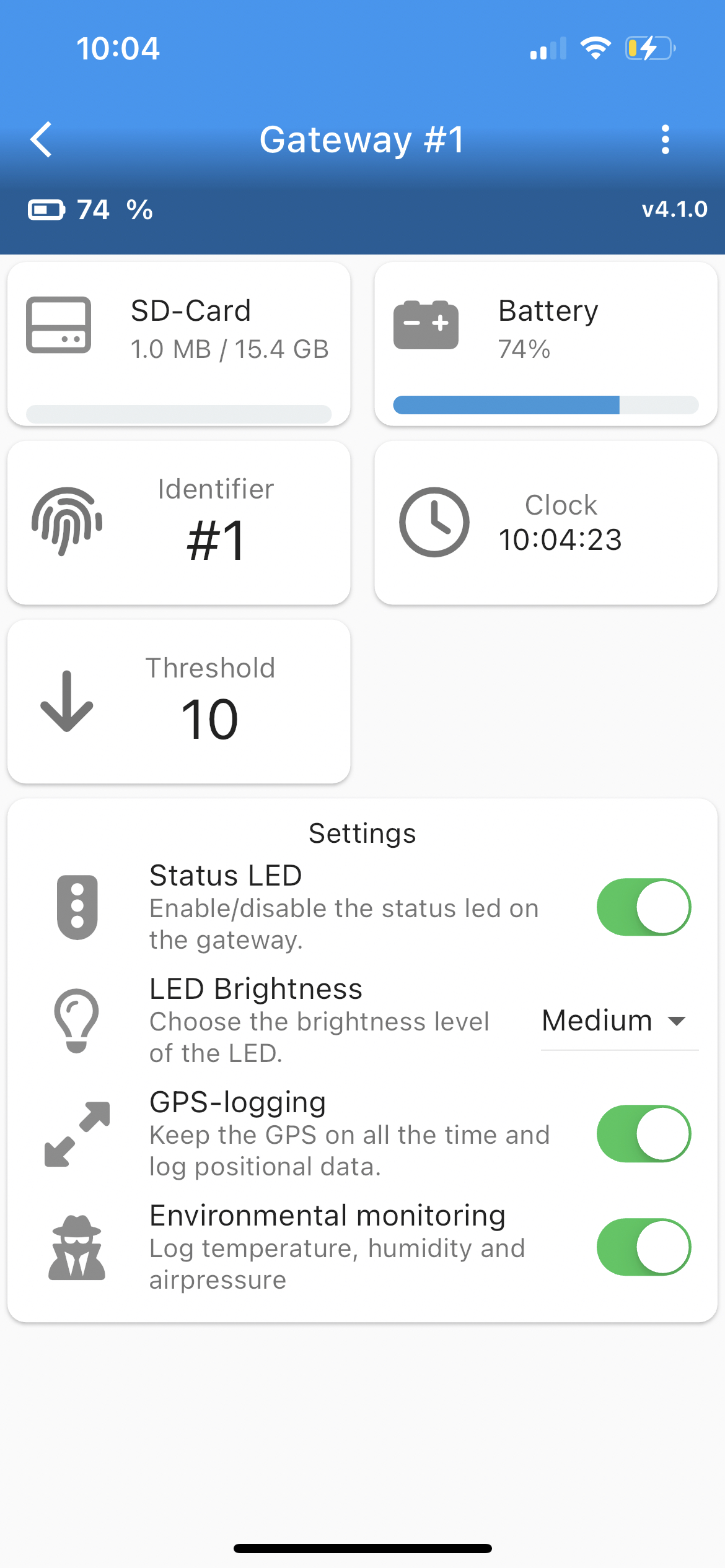
Configuring the Gateway is simple and can be done via the mobile app. The following features can be configured/viewed:
-
Gateway SD-card: The status of the SD-card can be viewed. You can view the size that is detected and how much of the SD-card is used. Tapping on the SD-card allows you to download some files, but this feature is experimental and should be used at your own risk.
-
Battery card: Shows battery estimate
-
Identifier: Allows to assign your gateway a unique ID. Useful if you have multiple gateways and are having trouble keeping them apart.
-
Clock: The current time that the gateway has registered. This is automatically converted to the timezone on the phone, but internally and in the files the gateway uses GPS-time. This is UTC without the leap seconds. In your gateway files you will always see this time-zone being utilized, while your app will auto-convert this time into your local timezone.
-
Threshold: This is the data-threshold at which a gateway will connect to a logger to download its data. If this is set to 10, it will connect to a logger once it has reached 11 data-points. Note that during the time a logger is sending its data, it is unable to log other loggers. Setting this too low may cause you to lose some data since it will constantly be connecting to the gateway.
-
Status LED: Controls the LED on the gateway. It is highly recommended to disable this if you're not going to visit the gateway for a while, as this decreases the battery consumption by a lot. Updating the LED-setting might require disconnecting for the LED to update.
-
GPS logging: Unused at the moment. This switch does not work. In the future, this will control if the GPS-location of the gateway is written to the SD-card.
-
Environmental monitoring: Unused. If your gateway has an environmental sensor, it will start logging automatically.
¶ The SD-card
¶ Data stored on the SD-card
The SD-card stores 3 types of files:
- LXXXX.CSV: These are your logger data files. They contain the data that is downloaded straight from the logger in CSV format.
- ENC.CSV: This is the encounter log from the gateway. It keeps track of the loggers that it is detecting in the area. This is useful if you want to know if a logger has come nearby without it neccesarily having enough data to trigger the download threshold.
- ENV.CSV: Some gateways have an environmental sensor mounted on them. If that is the case, this file will appear and contain the environmental data.
- HIST.CSV: This file contains the download history of the gateway. Each download that happens adds a line to this spreadsheet, containing the amount of data. It also contains the battery voltage indicated by the logger. This can be useful if you want to plot the battery voltage over a period of time. The battery voltage can be calculated by multiplying the number in this spreadsheet with 0.02364765. More information on the correlation between remaining battery capacity and voltage can be found online.
¶ Recommended SD-cards
When setting up the gateway for the ProxLogs system, it is essential to choose the right micro SD-card to ensure reliable and efficient data storage. Given the data management efficiency of the ProxLogs system, the data stored typically does not exceed a few gigabytes. For most users, an 8GB micro SD-card will suffice, providing ample space for data storage without necessitating frequent card replacements or upgrades.
We recommend considering micro SD-cards from reputable manufacturers that offer high endurance lines, such as:
- SanDisk High Endurance Video Monitoring Card
- Transcend High Endurance microSD Card
- Kingston High Endurance microSD Card
- Samsung PRO Endurance microSD Card
These brands are known for their durability and are specifically engineered to - handle high write volumes, ensuring longevity and reliability.
However, a word of caution: the market is riddled with counterfeit micro SD-cards, which often masquerade as genuine products from well-known brands like SanDisk. These knock-offs not only provide subpar performance but also pose a risk of data loss and frequent failures. To protect your ProxLogs system and its data integrity, always purchase micro SD-cards from authorized dealers or directly from the manufacturer. Look for signs of authenticity, such as holographic seals and proper packaging, and be wary of prices that seem too good to be true, as they often are indicators of counterfeit products.
¶ Best Practices
- Place the Gateway in a location with coverage, or in a location you know the animals visit often.
- Placing the gateway in an elavated location increases it's range considerably. Do not place the gateway on the ground as the range will be severely limited.
- Ensure that the Gateway is securely mounted to prevent tampering.
¶ Troubleshooting
- My gateway stops downloading after a while, even though there are still loggers with data on nearby.
- Make sure that your gateway is up to date. Tap the gateway on your mobile app in the list to check it's version number. If it is lower than 0.4.2 it is running on firmware that contains two bugs that can get the gateway stuck. Refer to the Updating section for instructions on how to update.
- My SD-card does not work in the gateway
- SD-cards need to be formatted in FAT32 or exFAT to work with the gateway. There are lots of guides online on how to check if your card if formatted in either of these formats and how to re-format the card if needed. Cards that are almost full can also cause trouble. Make sure there is always sufficient space on the card or you'll risk losing out on data when the card runs full.
- My SD-card was initially working but now is giving an error in the gateway
- Usually this means that a file was not properly closed because of a power failure/glitch. Mount it on your PC and give it time to get recognized. After it is recognized, unmount it safely and re-enter it in the gateway. It should work again.
- I can't use the GPS-signal for time synchronisation because my gateway is indoors
- First of all make sure you are running on the latest version of the gateway firmware above or equal to 0.4.2. At least once a day set the time on the gateway using your app, by connecting to the gateway and tapping the time-card. This synchronizes the time on the gateway with your phone. If you wait more than a day, the gateway will continue to download the loggers but will not sync the time on them. Your encounter log will also stop working on the gateway.
For further support or inquiries, consult the FAQs section or contact IoSA bv customer service.